
MacBook Repair Guide — What to Check
MacBooks are reliable machines, but when something goes wrong, the repair path is not always obvious. This guide walks through the most common MacBook problems, what you can safely check yourself, and when it is time to contact a professional repair technician.
Before You Start
Before troubleshooting any MacBook issue, take a few basic precautions:
- Back up your data if the MacBook still turns on.
- Disconnect accessories, chargers, hubs, and external drives.
- Avoid opening the MacBook unless you have the right tools and experience.
- Do not continue using the device if you smell burning, see swelling, or notice liquid damage.
- If your MacBook is under AppleCare or warranty, check coverage before attempting repairs.
Common MacBook Problems
MacBook Will Not Turn On
If your MacBook shows no signs of life, start with the basics.
Check the charger, cable, and outlet. Try a different USB-C port if your model has more than one. Leave the MacBook plugged in for at least 20 minutes, especially if the battery may be completely drained.
If the screen is black but the keyboard or trackpad responds, the issue may be display-related rather than a total power failure.
Possible causes include:
- Faulty charger or charging cable
- Dead battery
- Power management issue
- Logic board failure
- Damaged USB-C charging port
Battery Drains Quickly
Battery wear is normal over time. You can check battery condition by opening System Settings, selecting Battery, and reviewing the battery health status.
Signs your battery may need replacement include:
- Fast battery drain
- Sudden shutdowns
- MacBook only works while plugged in
- Battery service warning
- Swollen case or trackpad lifting
If the battery is swollen, stop using the MacBook immediately and have it serviced.
MacBook Overheats or Runs Loud
A warm MacBook is normal during heavy use, but constant overheating can point to a deeper issue.
Try closing unused apps, checking Activity Monitor for high CPU usage, and making sure vents are not blocked. Older MacBooks may also need internal dust cleaning or fresh thermal paste.
Common causes include:
- Dust buildup
- Failing fan
- Heavy background processes
- Aging thermal paste
- Battery or logic board issue
Keyboard or Trackpad Not Working
Keyboard and trackpad problems can be caused by software, liquid damage, battery swelling, or hardware failure.
Restart the MacBook first. If the issue continues, test with an external keyboard or mouse. If the external device works normally, the built-in keyboard or trackpad may need repair.
For models with butterfly keyboards, stuck or repeating keys are especially common.
Cracked or Flickering Screen
Display repairs are usually not DIY-friendly. A cracked screen, flickering image, vertical lines, backlight failure, or blank display often requires replacing the display assembly.
Before assuming the screen is bad, connect the MacBook to an external monitor. If the external display works, the issue is likely with the screen, display cable, or internal display components.
Liquid Damage
If liquid spills on your MacBook, turn it off immediately. Do not charge it. Do not use heat to dry it.
Liquid damage can continue spreading internally even after the MacBook appears dry. A professional inspection is recommended as soon as possible.
What to do:
- Power off the MacBook
- Unplug the charger
- Keep the device open and upside down if possible
- Do not press random keys repeatedly
- Bring it in for inspection quickly
Repairs You Can Usually Try Yourself
Some issues are safe to troubleshoot at home:
- Restarting the MacBook
- Updating macOS
- Checking battery health
- Testing another charger
- Disconnecting external accessories
- Freeing up storage space
- Running Apple Diagnostics
- Backing up important files
To run Apple Diagnostics, shut down your MacBook, then start it while holding the appropriate key combination for your model. Apple silicon and Intel models use different startup steps, so check Apple's current instructions for your specific MacBook.
Repairs Best Left to Professionals
Professional service is recommended for:
- Battery replacement
- Screen replacement
- Logic board repair
- Liquid damage cleaning
- Charging port repair
- Keyboard replacement
- Data recovery
- Any repair requiring internal disassembly
MacBooks use compact parts, delicate cables, strong adhesive, and model-specific screws. A small mistake can turn a minor repair into a much more expensive one.
How Much Does MacBook Repair Cost?
Repair cost depends on the model, year, part availability, and severity of the damage.
Common repair categories include:
- Battery replacement
- Display replacement
- Keyboard or top case repair
- Charging port repair
- Logic board repair
- Liquid damage repair
- Data recovery
For the most accurate estimate, have the MacBook inspected and provide the exact model number, year, and symptoms. Our current MacBook repair pricing is listed on the price list, and you can request a free quote with your model and symptoms.
How to Find Your MacBook Model
If the MacBook turns on, click the Apple menu and choose About This Mac. This will show the model, year, chip, memory, and serial number.
If it does not turn on, check the bottom case for the model number. It usually begins with the letter "A," such as A2338 or A2681.
When to Repair vs. Replace
Repair may be worth it if:
- The MacBook is less than five years old
- The repair cost is reasonable compared with replacement
- The device still performs well
- Your data or software setup is important
- The issue is limited to one replaceable part
Replacement may make more sense if:
- The logic board has failed
- Multiple major parts are damaged
- The MacBook is very old
- Repair cost approaches the price of a newer model
- You need better performance or longer software support
Final Thoughts
MacBook repair starts with careful diagnosis. Some problems are simple, like a bad charger or software issue. Others require professional tools and experience, especially screen, battery, liquid damage, and logic board repairs.
If you are unsure, avoid forcing the device to power on or charge. A proper inspection can protect your data, prevent further damage, and help you decide whether repair or replacement is the better choice.
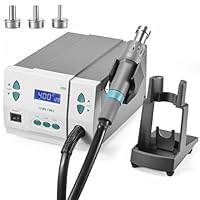
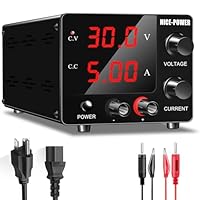
Tools we use for board-level repair
The microscope, soldering and rework gear, and meters we reach for on this kind of repair.




As an Amazon Associate I earn from qualifying purchases. Links to Amazon on this page are affiliate links: if you buy through them we may earn a commission, at no extra cost to you.